


Workload-level intelligence for Kubernetes GPU optimization

The Problem
Standard Kubernetes tooling wasn’t built to understand how GPU capacity is actually being used across workloads. The result is unreliable data, wasted capacity, and difficult optimization decisions.

You can’t trust the usage data
When multiple workloads share a GPU, standard monitoring can count the same usage more than once, making utilization look much higher than it really is.
The impact: Bad data leads to bad optimization decisions.

Capacity gets stranded
Kubernetes reserves GPUs as whole devices, even when a workload only needs a fraction of one. The rest of that expensive capacity can sit unused.
The impact: You pay for GPU capacity you’re not actually using.

Efficiency comes with risk
Sharing GPUs can improve utilization, but it can also make it harder to control which workloads use which resources.
The impact: Teams are forced to choose between control and efficiency.
Understand your GPU usage.
Know what to optimize.
StormForge gives you a workload-level view of GPU consumption, so you can see where capacity is going, uncover what’s sitting idle or underused, and understand where there are opportunities to improve efficiency.
Per-pod GPU visibility
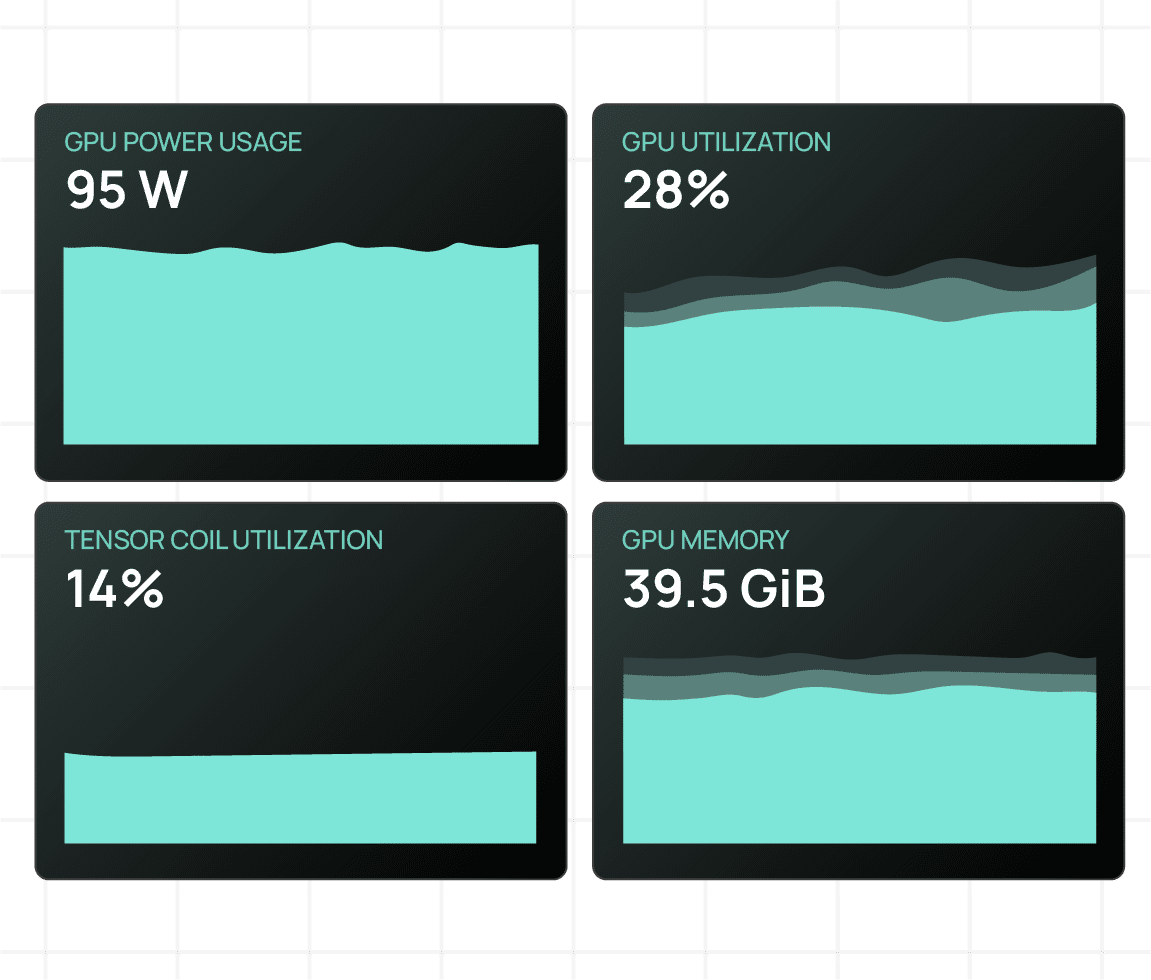
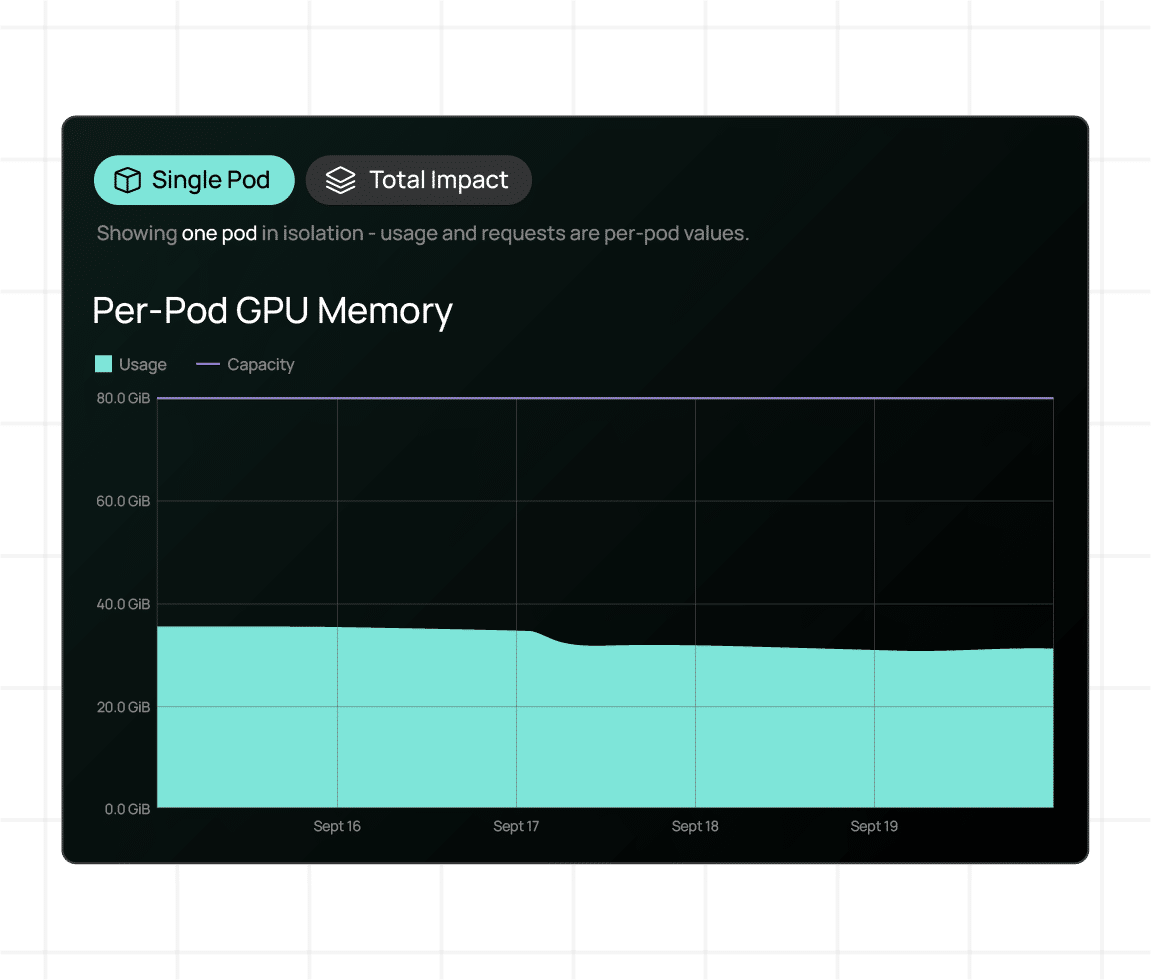
Get an accurate view of GPU utilization at the workload level, even when multiple workloads share the same device. StormForge connects GPU consumption back to the workloads and containers responsible, so you can understand where your GPU capacity is really going.
Find the waste
See where expensive GPU resources are sitting idle or being underutilized. StormForge helps uncover stranded capacity that traditional device-level monitoring can hide, giving you a clearer picture of where efficiency can improve.
Ready to see it in your environment?
StormForge GPU optimization is in early access. Request a seat and try it for yourself.
Get startedKnow what to change
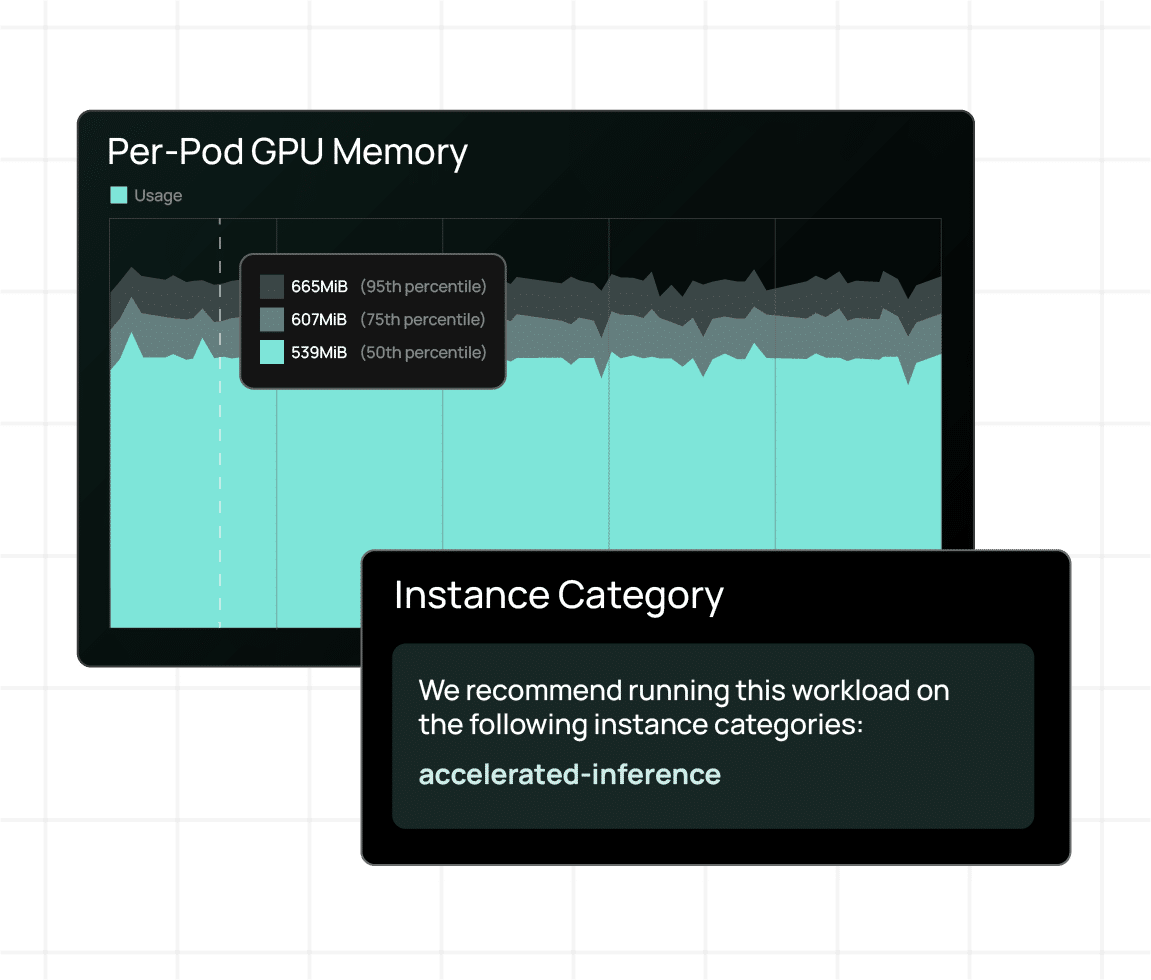
Understand when workloads could run on infrastructure that better matches what they actually need. StormForge recommends better-fit GPU node types, helping you identify opportunities to free up GPU capacity and potentially reduce infrastructure spend.
Track your GPU spend
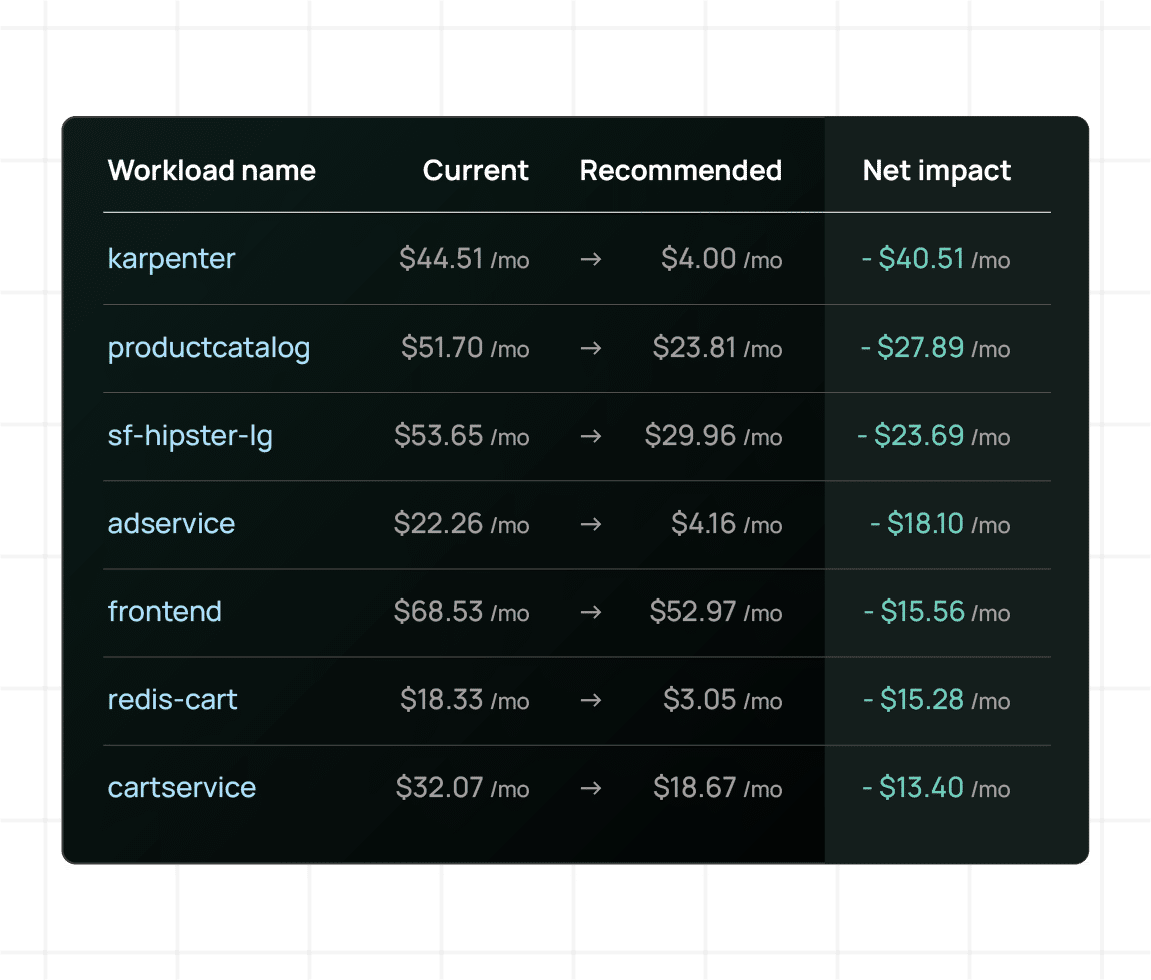
A bill can tell you what you’re spending, but not necessarily which Kubernetes workloads are driving it. StormForge uses on-demand rates to estimate costs by cluster, namespace, and workload, connecting infrastructure spend to the applications actually using those resources.
Turn GPU uncertainty into clarity

Trust your GPU usage data
See accurate GPU utilization at the workload level, even when multiple workloads share the same device.

Uncover stranded capacity
Find idle and underutilized GPU capacity that traditional monitoring can miss.

Make smarter optimization decisions
Get recommendations for better-fit GPU infrastructure based on actual workload demand.
Get GPU visibility in minutes
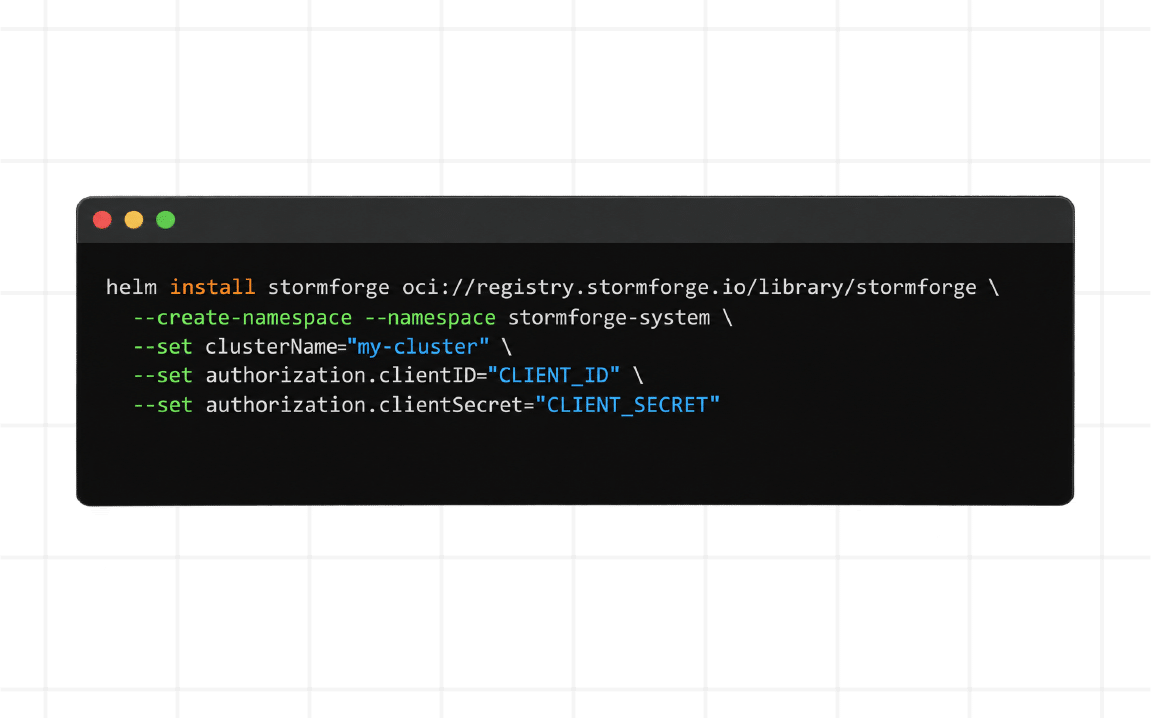
Deploy the StormForge agent with a single Helm command and start collecting GPU metrics right away. No custom attribution pipeline or complex monitoring stack required. Get workload-level visibility and optimization insights with minimal setup.
One Helm command • One agent • Insights in minutes
See what your GPU workloads are actually using
Request early access